Facebook Messenger bots are a great way to automatically pre-qualify users using commands and automated messages.
News can also be sent as bulk messages for news sites.
Setup
- Connect Facebook profile

- Select Facebook page

- Optional: Enable Messenger Web Opt-In

The Facebook Messenger opt-in is used for devices that do not support web push (e.g. iOS, Facebook in-app browser).


Greeting: Here you can specify the welcome message that will be displayed on your bot’s welcome screen. The welcome screen appears the first time someone interacts with your bot.
Tip: First connect the setup to a test Facebook page, set up the commands and other messages and then connect the correct Facebook page.
Welcome message
The welcome message will be sent as soon as someone activates your bot. Here, for example, the user can be asked about their interests.
Steps:
All messages are structured using steps, which in turn contain messages. Various steps can be jumped to within the messages, for example using buttons.
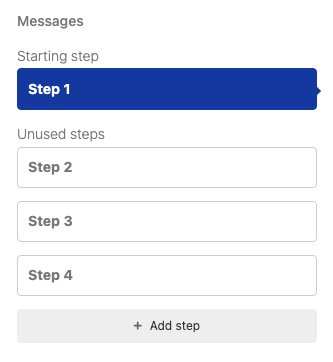
Messages:
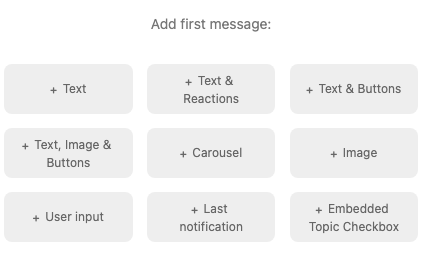
Different message types are available:
- Text: Simple text message
- Text & Buttons: Text message with up to 3 buttons
- Text, image & buttons: Card layout consisting of image, text and buttons
- Carousel: several card layouts consisting of image, text and buttons
- Image: Simple image
- User input: The bot waits for a message from the user, which is then saved in an attribute, for example
- Last notification: Sends the last message sent to all users to the user
Buttons:
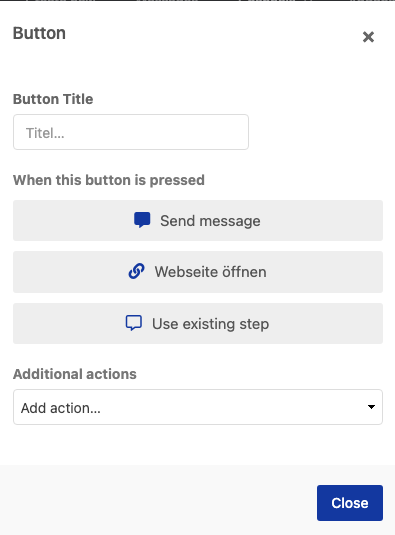
Various actions can be set here when the button is clicked:
- Send message / Select existing step: Sprint to a defined, different step and send the first message from this
- Open website: Link to a URL
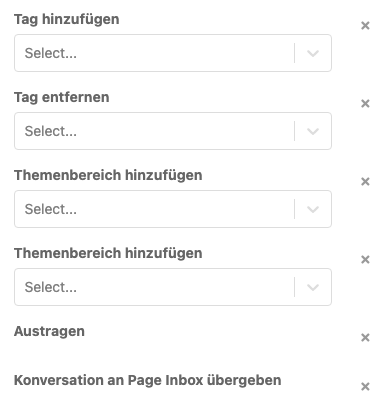
Further additional actions are available, several are also possible per button:
Conditions of messages:
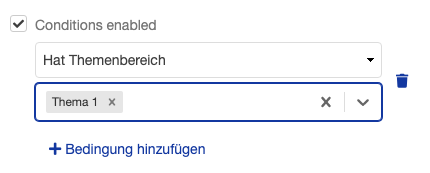
Optionally, a message can be linked to a condition so that it is only sent, for example, if the user has a subject area or tag.
Commands
A command is a message from a user (upper / lower case is not important). Your bot can respond to commands and take various actions.
The checkmark “Must only appear in the message” specifies that only the command must appear in the message, even for longer messages.
“First action” can be used to define additional actions (similar to the buttons in the messages), which are carried out directly when the command is triggered.
Default reply
If your bot receives a message from a user and cannot assign it to a command, this message will be sent.
Chat
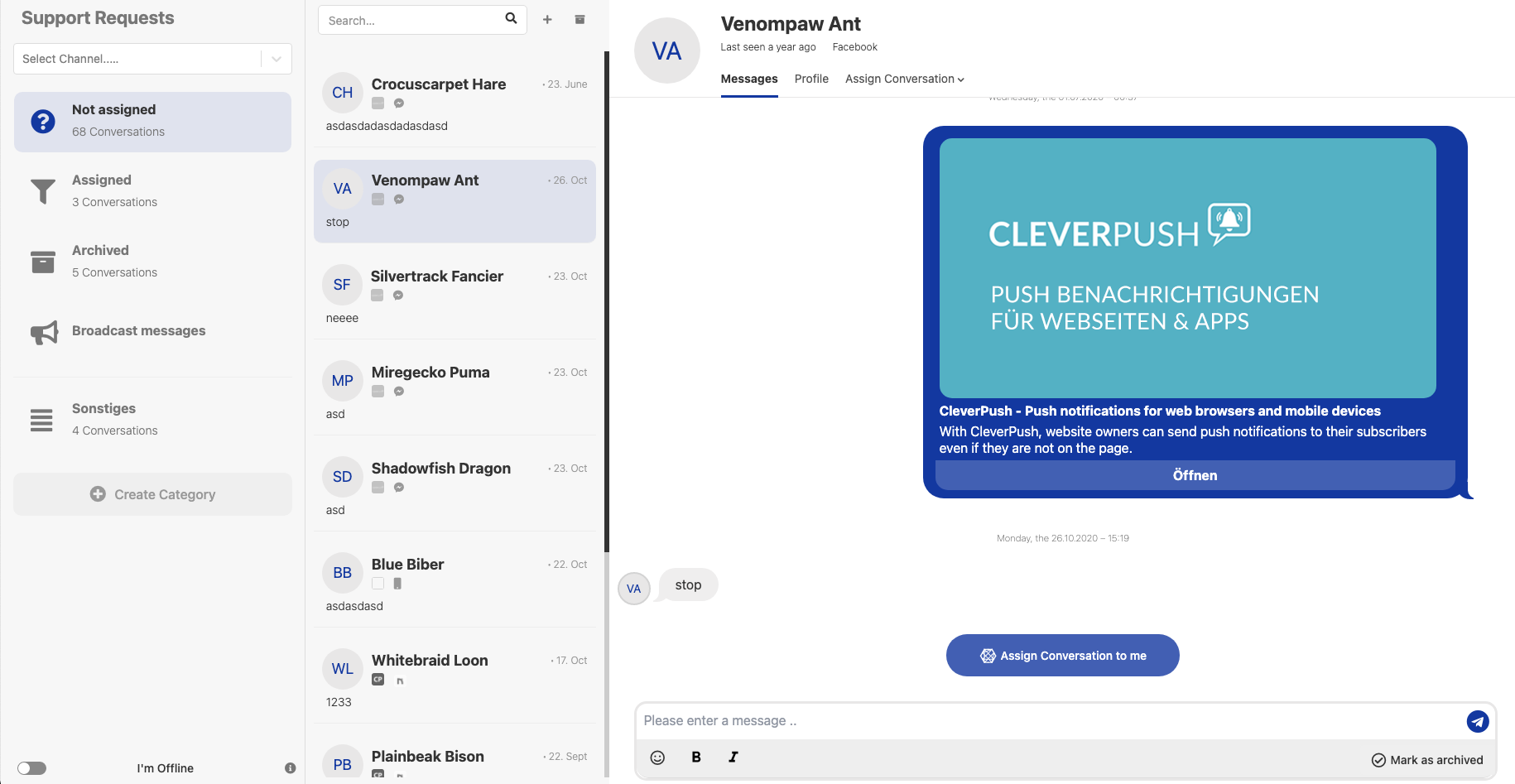
The chat area can be activated optionally. If it is activated, another entry appears at the top of the menu. In the chat area, support requests can be processed easily and collectively directly in CleverPush.
General Settings
URL Shortener: When sending a new message, URLs are automatically shortened here. Optionally, you can also use your own short domain.